






Introduction
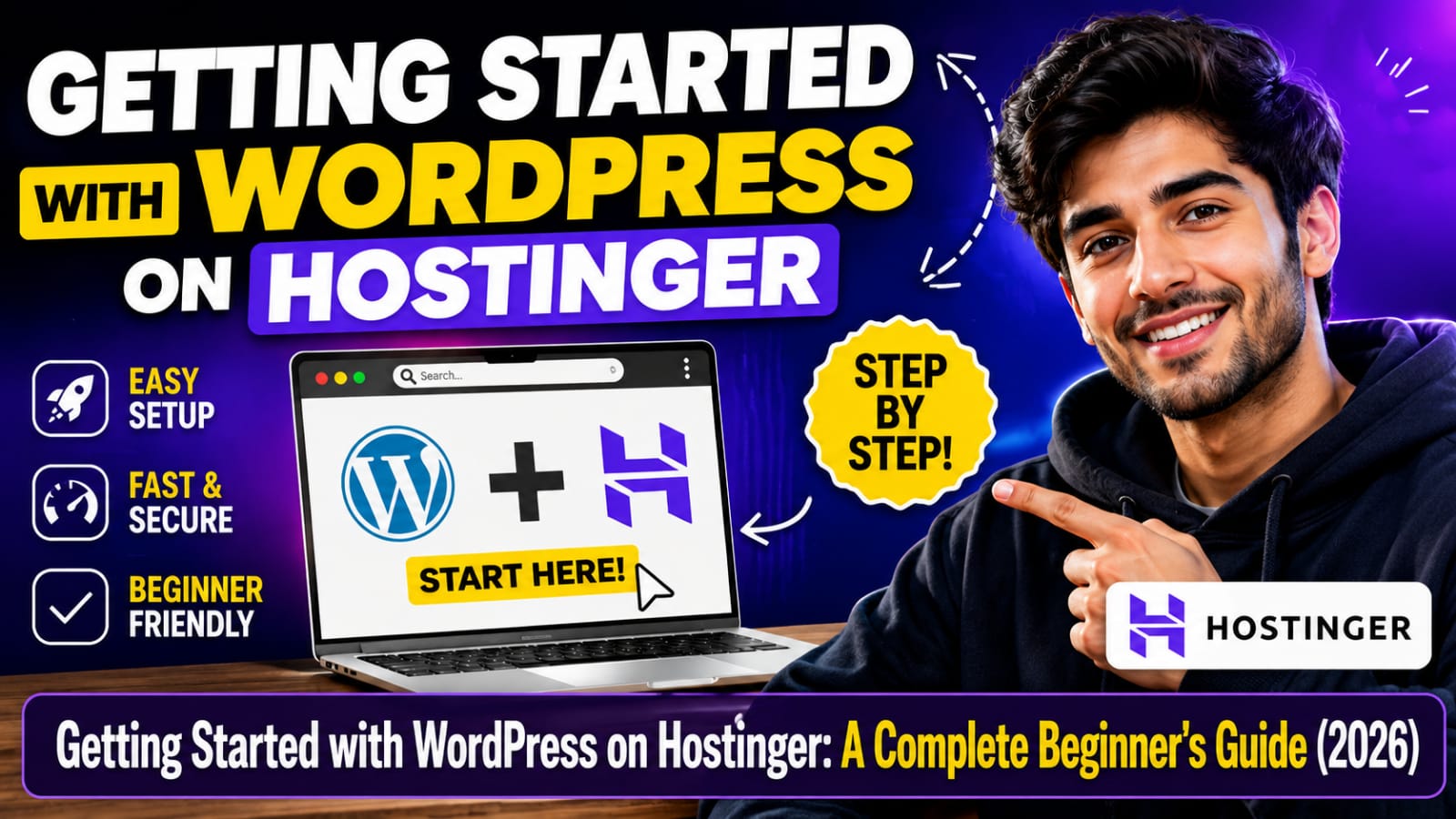
Getting Started with WORDPRESS on HOSTINGER
I still remember the night tried to build my first website. it was almost 1:00 AM l had six browser tabs open, a lukewarm cup of tea sitting beside my laptop, and absolutely no idea what CPANEL meant.
Getting Started with WORDPRESS on HOSTINGER is easier than most beginners think.
A friend had told me, “Just get hosting and install WORDPRESS. It’s easy.”
Honestly, it didn’t feel easy.
Not because WORDPRESS is difficult, but because no one explained the process in plain English.
Fast forward a few years and several client website later, HOSTIGER has become my go-to recommendation whenever someone ask “How do I get started with WORDPRESS on HOSTINGER?”
Not because it’s flashy, but because it removes most of the confusion I experienced that first night.
If you’re sitting where once was-staring at your screen, wondering where to begin-this a beginner’s guide is for you.
Getting Started with WORDPRESS on HOSTINGR is the beast choice for beginners who want to launch a website without technical knowledge
Getting Started with WORDPRESS on HOSTINGR
Why I Recommend HOSTINGER for Beginners Specifically
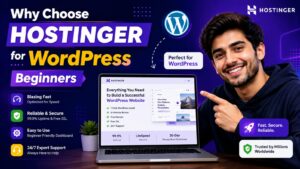
Getting Started with WORDPRESS on HOSTINGR becomes much easier when you follow the correct setup process.
I’ve used Blue host, Go Daddy, and several smaller hosting providers over the years. Some were decent, while others gave me sleepless nights because of slow customer support.
When I finally tried HOSTINGER for a side project, one thing immediately stood out.
I didn’t have to spend hours figuring out how to install WORDPRESS.
Instead of using the traditional CPANEL, HOSTINGER provides its own dashboard called HPANEL, which includes a simple one-click WORDPRESS installer.
That means:
- No manual database creation
- No FTP software
- No uploading WORDPRESS file manually
- No complicated technical setup
Everything happens in just a few clicks.
it’s also beginner-friendly when it comes to pricing.
When I launched my first blog, I wasn’t ready to spend I lot of money every month. HOSTINGER’s affordable plans made it much easier to get started Without talking a big financial risk.
What You Actually Need Before You Start
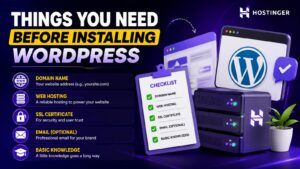
Before installing WORDPRESS it’s worth preparing a few things first.
Trust me-it saves time later.
You’ll need:
- A domain name (even if it’s just an idea for now)
- A clear purpose for your website (blog business, portfolio, or online store
- Around 30-45 minutes uninterrupted time
That last point matters more than people realize.
I once tried setting up a website during my lunch break. I got interrupted twice and had to restart the installation process from the beginning.
A little uninterrupted time makes the entire setup much smoother.
Getting Started with WORDPRESS on HOSTINGR
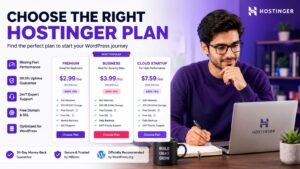
Step-by-Step; Getting Started With WORDPRESS On HOSTINGER
Step 1: Pick the Right Hosting Plan
Don’t overthink this step.
For most beginner’s the premium, or business housing plan is more than enough.
I started a with the cheapest plan for my personal blog and only upgraded after my traffic became to grow.
My advice?
Don’t buy the most expensive hosting plan just because you think it’ll perform better.
For a brand new website, you’ll hardly notice any difference.
Quick Tips
- choose an annual plan if it includes a free domain.
- Start with a beginner-friendly package.
- Upgrade only after your website grows.
Step 2: Register Your Domain Name
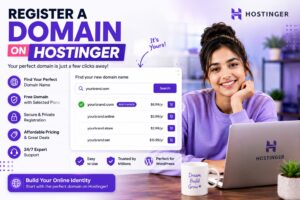
During checkout, HOSTINGER often includes a free domain with annual hosting plane.
I used this offer on one of my website and saved the cost of buying a separate domain.
If you already own domain from providers like NAMECHEAP or Go Daddy, you can still connect it to HOSTINGER.
You’ll simply need to update the Name Servers.
The first time I did this, I got stuck.
Thankfully, HOSTINGER’s live chat support guided me through the entire process in just a few minutes.
Pro Tip
Choose a domain name that’s:
- Short
- Easy to remember
- Easy to spell
- Relevant to your niche
Avoid numbers and unnecessary happiness whenever possible.
Getting Started with WORDPRESS on HOSTINGR
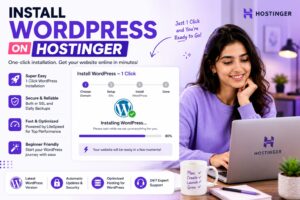
Step 3: Complete the Sign up and wait for the Welcome Email
Once you’ve completely your payments, you’ll receive access to HOSTINGER, h Panel almost immediately.
You’ll also receive a welcome email containing your account details, login information, and helpful setup Links.
Before moving to the next step, make sure you’ve saved this email. It often contains everything you’ll need during your first login.
Step 4: install WOREDPRESS Using the Auto Installer
This is the step that used to scare me most.
Thankfully, HOSTINGER Makes it incredibly simple.
Follow these steps:
- Log in to HOSTINGER HPANEL
- Open the Websites section
- Click Add Website or Manage
- Select WORDPRESS
- Enter your website title
- Create your administrator username
- Set a strong password
- Click install
That’s it.
HOSTINGER automatically creates the database, configures WORDPRESS, and completes the installation in just a few minutes.
One important tips; Never use “admin” as your username. I made that mistake once, and my website started receiving automated login attempts within days.
Step 5: Log In to your WORDPRESS Dashboard
After the installation finishes you’ll receive your WORDPRESS login URL.
It usually looks like this:
your domain.com/WP-admin
Bookmark dis page immediately.
I can’t count how many times I searched Google for my own WORDPRESS login page simply because I forgot to save it.
Once you Log in, you’ll see the WORDPRESS Dashboard, where you’ll manage your entire website.
Step 6: Choose a Theme (Don’t Make My Mistake)
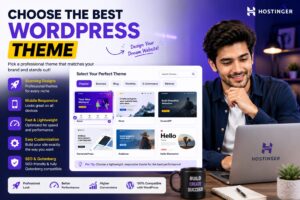
One mistake I made on my second website was spending almost four horse searching for the “perfect” WORDPRESS theme.
Looking back, it was a complete waste of time.
Instead, choose a lightweight and beginner-friendly theme.
Some excellent free options in cloud:
- Astra
- KADENCE
- Generate Press
These themes are:
- Fast
- Mobile-friendly
- SEO-friendly
- Easy to customize
Remember, you can always change your theme later without losing your content.
Choosing a lightweight theme is an important part of Getting Started with WORDPRESS on HOSTINGR.
Step 7: install Only the plugins you really need
The right plugins can make Getting Started with WORDPRESS on HOSTINGR faster and more secure.
One of the biggest mistakes beginners Make is installing too many plugins.
I once installed 22 plugins on a small blog simply because every plugin looked a useful.
The result?
My website became painfully slow.
Today, I keep things simple.
I recommend starting with.
- Rank Math SEO
- lite Speed cache
- WORDFENCE Security
- Updraft Plus Backup
A smaller number of plugins usually means:
- Better speed
- Better security
- Fewer compatibility issues
- Easier maintenance
Remember:
Every plugin adds extra code to your website, install only what you actually need.
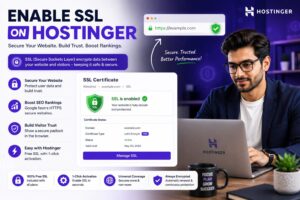
Step 8: Enable SSL (HTTPS)
Most HOSTINGER hosting plans automatically activate a free SSL certificate.
SSL changes your website from:
http://
to
https://
You’ll also see the secure padlock icon in the browser.
When I helped one of my clients launch a website, The SSL certificate took about twenty minutes to activate completely.
If yours doesn’t appear immediately, don’t panic.
Give it a little time before trying to trouble shoot.
Getting Started with WORDPRESS on HOSTINGR
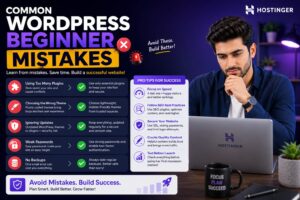
Common Beginner Mistakes to Avoid
Everyone makes mistakes.
Here are a few that I personally made-and learned from.
Forgetting to change the permalink structure
By default, WORDPRESS creates URLs like:
Yourwebsite.com/?p=123
Instead, go to:
Settings → Permalinks → Post Name
This creates clean, SEO-friendly URLs.
Note Setting Up Regular Backups
I once lost nearly a week’s worth of blog posts because I assumed everything was backed up automatically.
Although HOSTINGER provides backups, always create you are own backup schedule as an extra safety measure.
Uploading Huge Images
Uploading full-resolution photos directly from your phone can slow you are website dramatically.
Before uploading:
- Compress your images
- Resize large files
- Use modern for mate when ever possible
Using Weak Passwords
Never use simple passwords
Learn more from the official WORDPRESS Support.
Use a password manager and create strong, unique login credentials for your WORDPRESS administrator account.
Read our complete guide on How to Start a Blog in 2026.
A Quick Real-Word Example
One of my friends wanted to start a baking blog.
She had absolutely no technical experience.
In fact, she didn’t even know what web hosting meant.
We signed up for HOSTINGER, installed WORDPRESS selected the Astra theme, added Rank Math SEO, and published her first blog post in about two hours.
Most of that time was spent choosing colors and fonts-not setting up WORDPRESS.
That’s how beginner-friendly HOSTINGER has become.
Getting Started with WORDPRESS on HOSTINGR
Frequently Asked Questions (FAQ)
Is HOSTINGER good for WORDPRESS beginners?
Yes. HOSTINGER offer one-click WORDPRESS installation, beginner-friendly pricing and an easy-to -use h Panel dashboard.
How long does it take to install WPRDPRESS on HOSTINGER?
Most installations take between 5 and 10 minutes
Does HOSTINGER include a free domain?
Most annual hosting plans include a free domain for
Do I need coding skills?
No.
You don’t need any programming knowledge to build a WORDPRESS website on HOSTINGER
Can I change my WORDPRESS theme later?
Yes.
You can switch themes anytime Without losing your website content.
Is HOSTIGER Suitable for blogging?
Absolutely.
HOSTINGER is one of the best beginner-friendly hosting providers for bloggers, business websites and portfolios.
If you’re serious about building your first website, Getting Started with WORDPRESS on HOSTINGR is one of the easiest ways to begin.
Final Thoughts
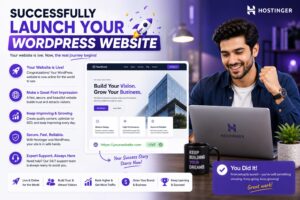
Before publishing your website, take a few extra minutes to review everything carefully. Getting Started with WORDPRESS on HOSTINGER becomes much easier when you complete the basic setup correctly the first time. Check that your SSL certificate is active, update WORDPRESS to the latest version, install only essential plugins, and create your first backup. Many beginners rush through these steps, but following this Getting Started with WORDPRESS on HOSTINGER guide will help you avoid common mistakes. Once your website is ready, you can confidently publish your content and continue growing your online presence with Getting Started with WORDPRESS on HOSTINGER as your foundation
Getting started with WORDPRESS on HOSTINGER is much easier today then it was a few years ago.
Getting Started with WORDPRESS on HOSTINGR
Most of the technical work-such as database creation, WORDPRESS installation and SSL configuration-is handled automatically.
If I could give one piece of advice to my younger self, it would be this:
Don’t wait for everything to be perfect.
Getting Started with WORDPRESS on HOSTINGR
Install WORDPRESS, choose a clean theme, public your first piece of content, and improve your website over time.
Every successful website started with a single page.
Yours can to.
Getting Started with WORDPRESS on HOSTINGER is one of the easiest ways for beginners to launch a professional website without technical knowledge. By following this Getting Started with WORDPRESS on HOSTINGER guide, you can build your website with confidence and avoid common setup mistakes
